Access Control
Account roles, and hiding a sensitive workflow from other members
Access control in bem has two layers. Every member of an account carries one account role that governs what they can do everywhere. On top of that, any single workflow can be restricted — hidden, along with everything it processed, from members who have not been given access to it.
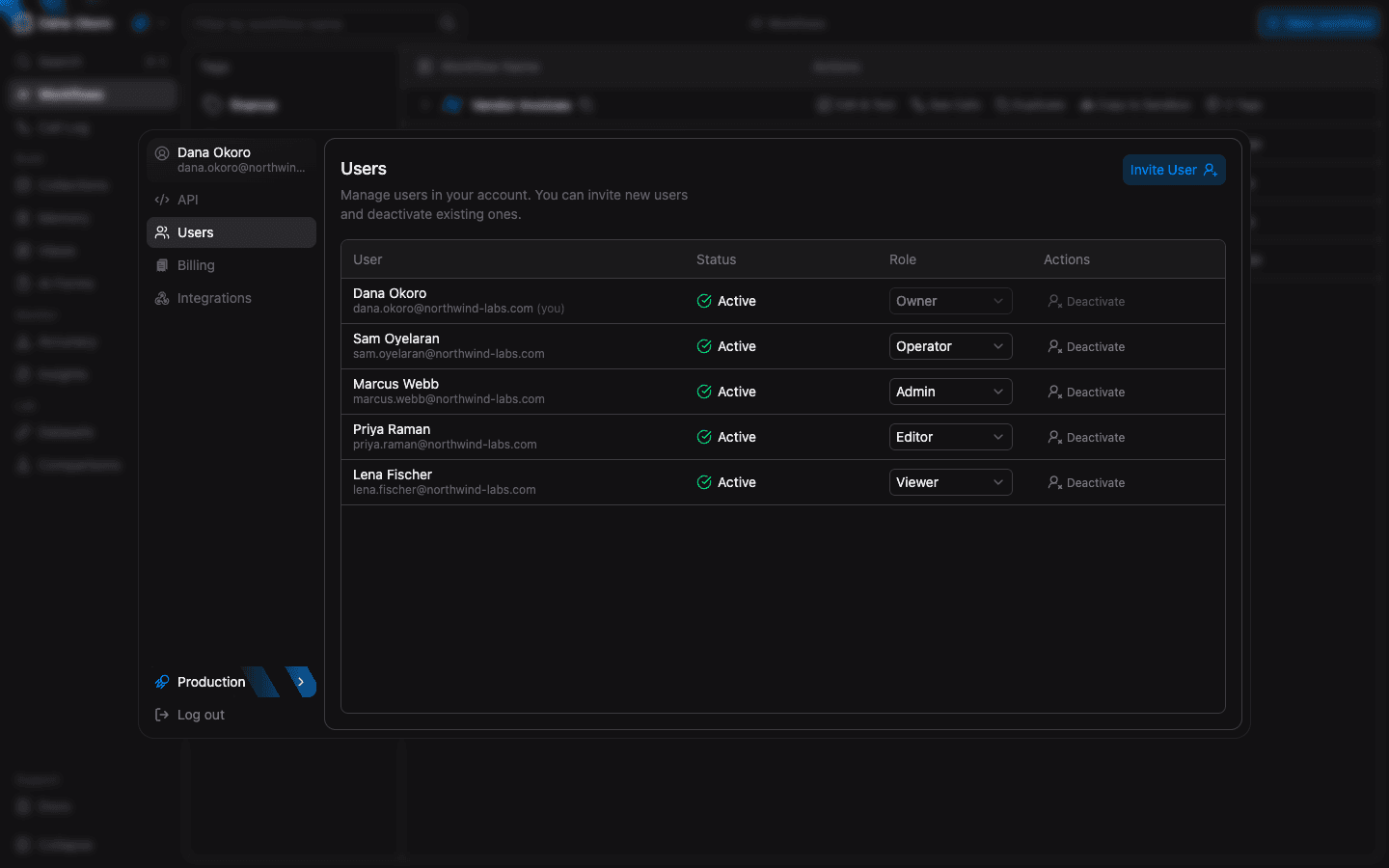
Account roles (Settings → Users)
Open the account menu in the top-left corner, choose Settings, then Users. Admins and owners can invite members, change a member's role from the dropdown in the Role column, and deactivate them.
Every member holds exactly one account role. The right-hand column is what that role means on a workflow that has not been restricted:
| Role | In the account | On an open workflow |
|---|---|---|
| Owner | Everything, including billing. One per account. | Full control, including access management |
| Admin | Everything except owner-only billing settings. Manages members, API keys, and webhooks. | Full control, including access management |
| Editor | Create, edit, and delete workflows and functions. Run workflows, retry calls, submit corrections. | Read, run, edit, delete |
| Operator | The same workflow powers as an Editor. Cannot manage members, API keys, or webhooks. | Read, run, edit, delete |
| Viewer | Read-only across the app: workflows, calls, outputs, errors, traces, functions. | Read |
Operator is not a step between Viewer and Editor. Despite sitting lower in the list, an Operator has the same workflow powers as an Editor — they can create, edit, and delete workflows. To give someone the ability to run a workflow without the ability to change it, make them a Viewer at the account level, then hide that workflow and set their role on it to Operator.
Workflow access (workflow toolbar)
Every workflow starts open: everyone in the account can see it, and their account role decides what they can do with it. Owners and admins can hide a workflow so that it is visible only to the people they name.
Open a workflow from the Workflows list and look at the toolbar next to the workflow name:
- Manage access — opens the access panel. Blue while the workflow is open, yellow once it is restricted.
- Restricted (yellow, with a lock) — you can see this restricted workflow, but you are not one of its managers, so you cannot change who else can.
The panel asks one question, and the answer you pick is the whole setting:
- Anyone in the account — each member's account role decides what they can do with it.
- Only people you add — the workflow, and its calls, outputs, and errors, are hidden from everyone you have not added.
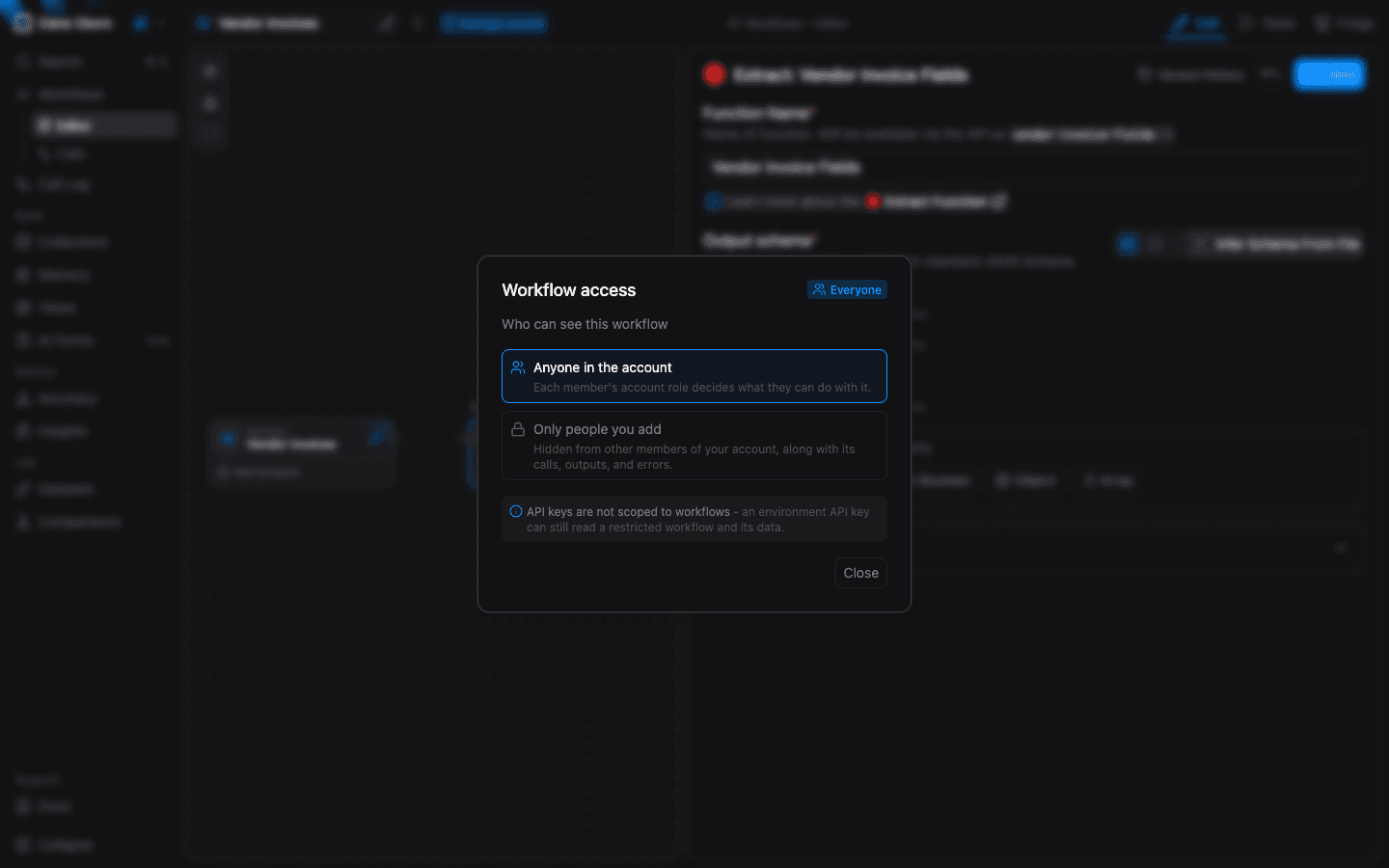
Hiding a workflow
Choosing Only people you add opens a confirmation step where you name the members who keep access. Adding someone here is what gives them access — there is no separate step to grant it. Owners and admins are deliberately absent from the picker: they already have full access to every workflow and never need a grant.
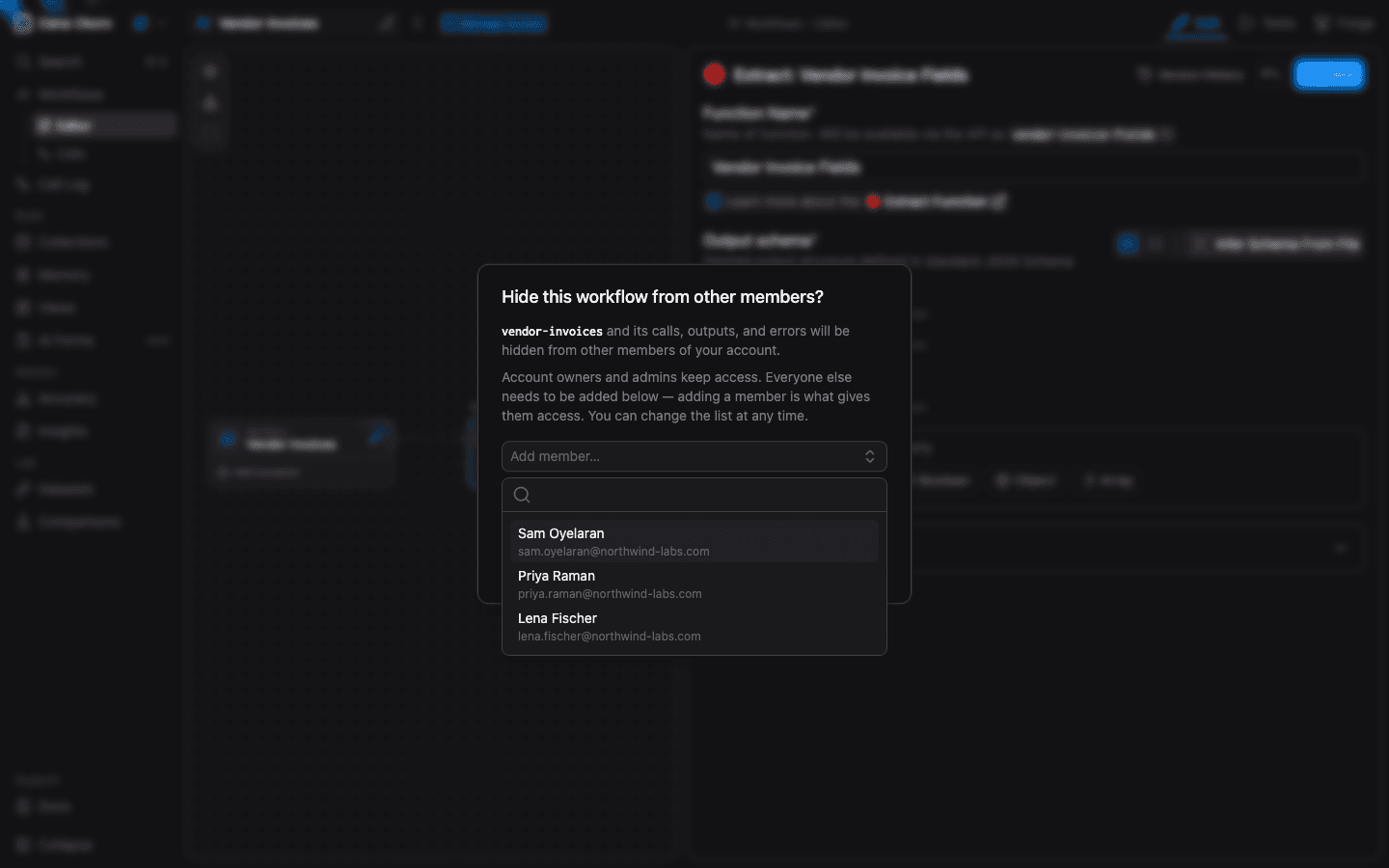
Nothing changes until you confirm, so you can back out of the picker without touching the workflow.
- Only an owner or admin can put a workflow into the restricted state; an open workflow has no managers yet. Once it is restricted, any Manager on it can administer it.
- Restriction is per workflow, per environment. Restricting
invoicesin Sandbox leavesinvoicesin Production open, and access does not carry between environments. - Switching back to Anyone in the account reverses it — but it deletes the member list rather than parking it, and the confirmation tells you how many members that is. Re-hiding later starts from an empty list, so nobody is silently re-granted access months later.
- Copying a restricted workflow produces a workflow that is also restricted, with you added as its Manager. A restricted workflow cannot be laundered into an open copy.
Workflow roles
Inside a restricted workflow the grant is the whole story: it overrides the account role in both directions. An account Viewer granted Editor can edit that workflow. An account Editor granted only Viewer is read-only there.
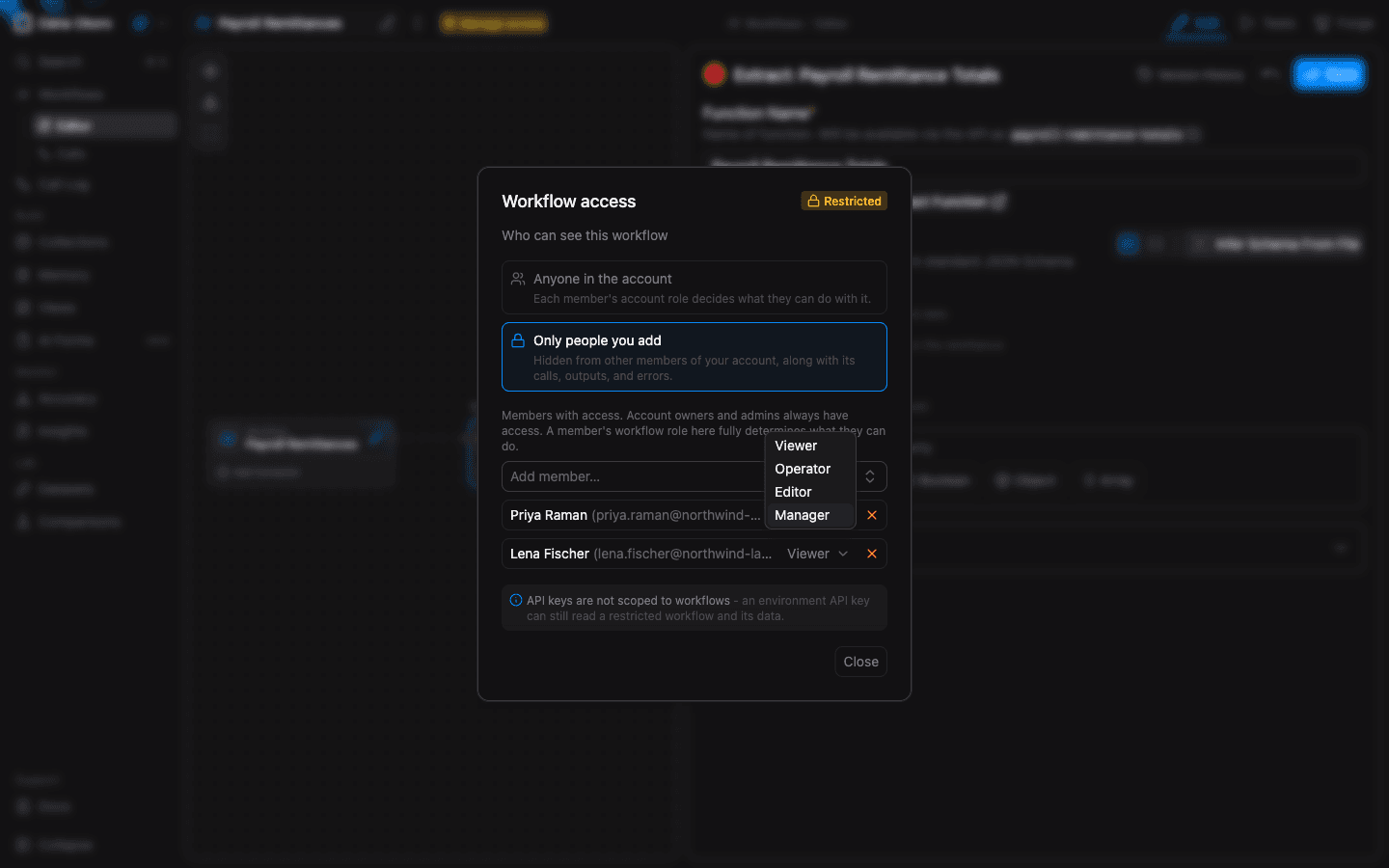
Each role includes everything above it:
| Workflow role | Adds |
|---|---|
| Viewer | See the workflow and read everything it produced — definition, versions, calls, outputs, errors, traces |
| Operator | Run the workflow, retry its calls, submit corrections on its outputs |
| Editor | Modify the workflow and its tags, save new versions, delete it |
| Manager | Manage the member list — add, remove, and change roles — and turn restriction off |
- A member you add starts on the role that matches what they could already do here while the workflow was open, so hiding a workflow does not quietly demote anyone. Change it from the dropdown at any time.
- Because the two ladders order the same names differently, an account Operator starts as a workflow Editor — the account role already allows editing. That is expected, not a mistake.
- Changes take effect on the member's next request. There is nothing to invalidate and no sign-out required.
- The Editor tab of a restricted workflow needs an Editor grant. A Viewer or Operator grant reads the workflow's data through the Calls tab; the Editor tab shows an "Access Restricted" panel.
- A Manager can remove or demote their own grant, including the last Manager's. Owners and admins always retain control, so a workflow can never be orphaned.
- Access is granted to individual people. There are no groups or teams yet, so a long list is maintained member by member.
What members without access see
Nothing. A restricted workflow is absent from the workflows list rather than greyed out, and there is no hint that anything was filtered.
Here is the same environment as an owner, then as an Operator with no grants — five workflows become three:
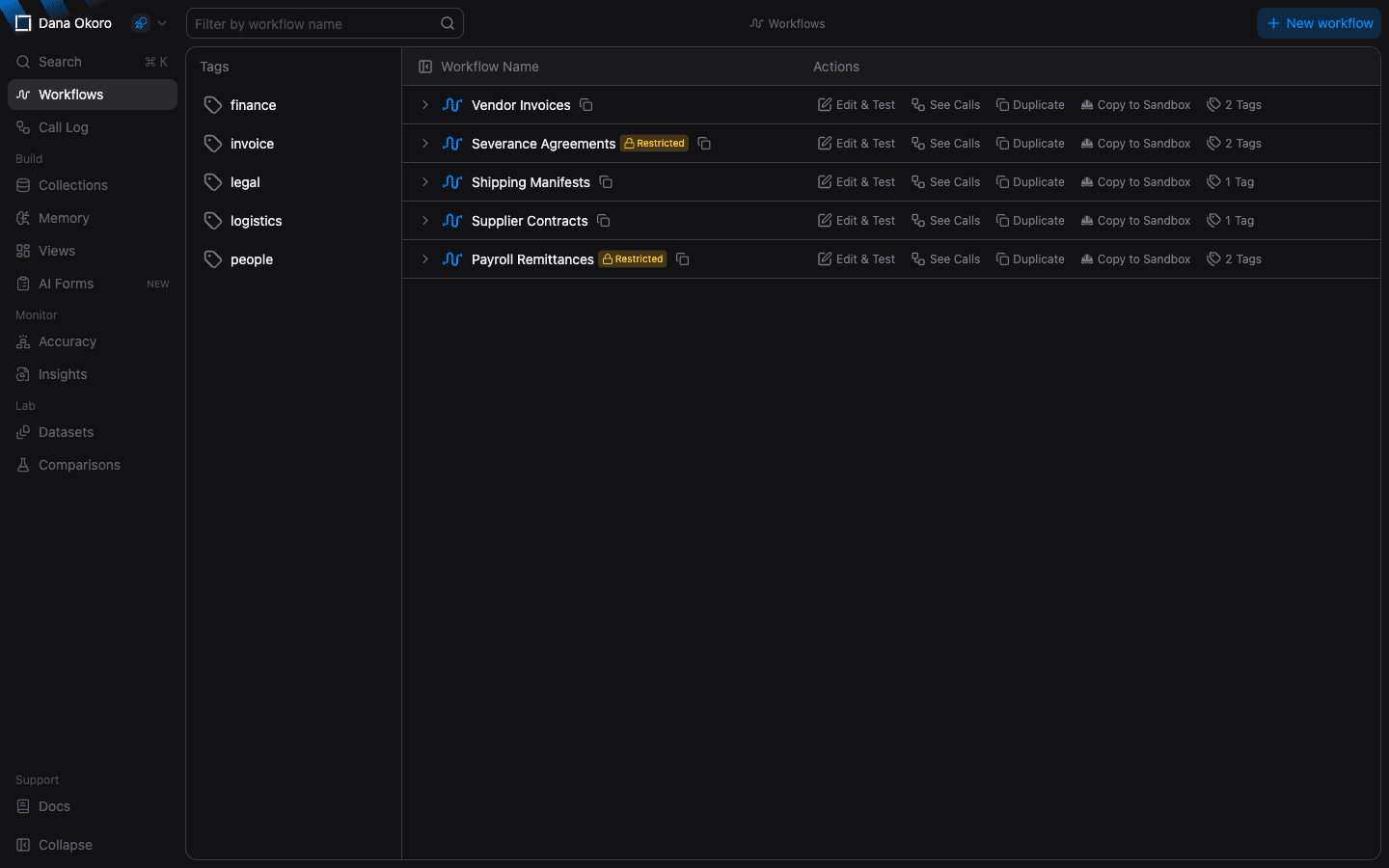
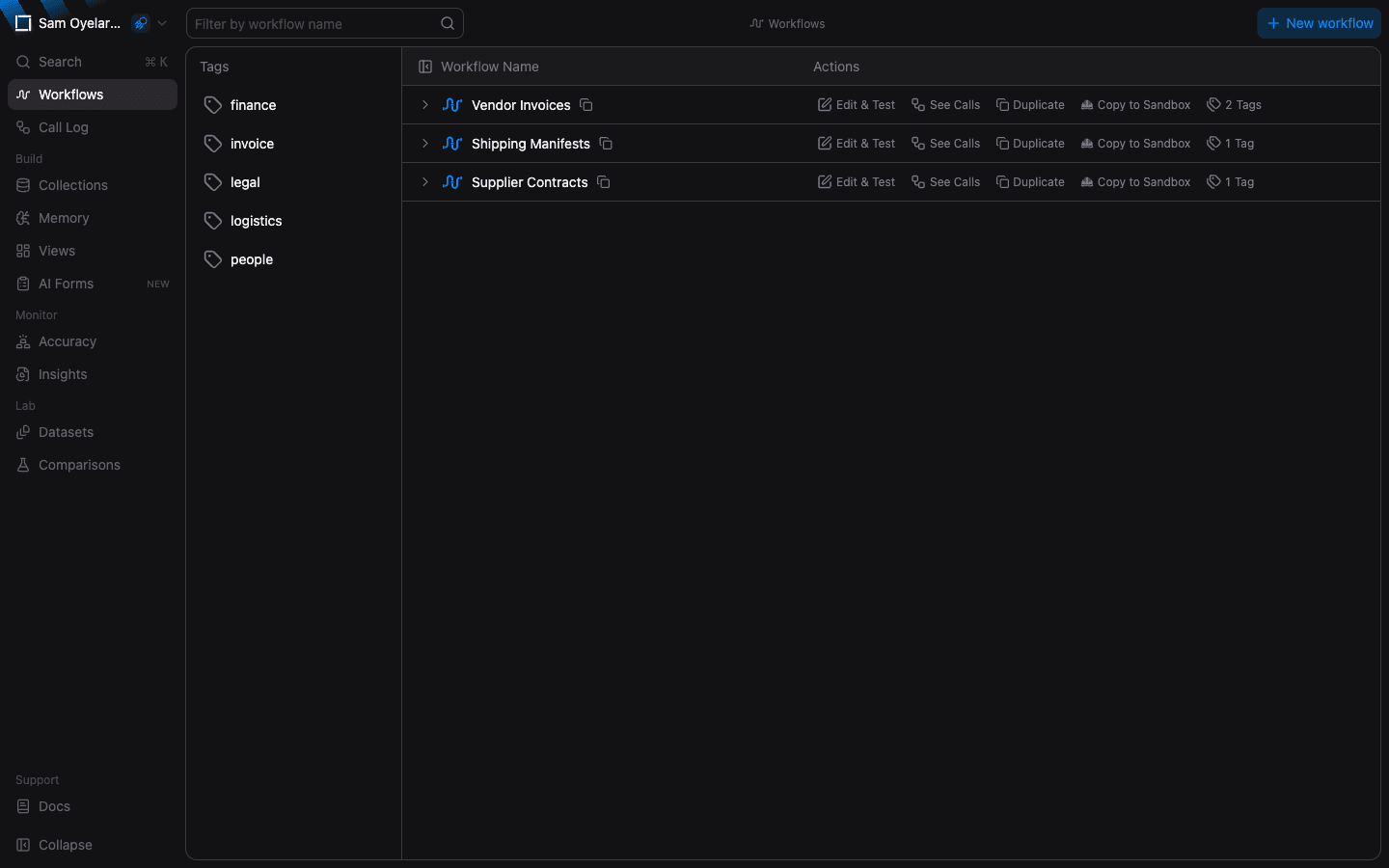
For a member without a grant, a restricted workflow disappears from:
- The Workflows list, and the workflow pickers that read from it.
- The Call Log and the workflow's Calls, plus outputs, errors, events, and traces.
- Accuracy review and dataset building — a function version shared with an open workflow does not leak the restricted workflow's outputs into either, and a function only the restricted workflow uses is absent from the function selector entirely.
- Anything addressed directly by name or ID, which returns not found — the same response as a workflow that never existed. Deep links in the app bounce back to the workflows list.
That last point is deliberate: a "forbidden" response would confirm the workflow exists, which is exactly what restricting it is meant to prevent.
Functions follow the workflows that use them
A function has no owning workflow. One function can serve many workflows and can be called on its own, so there is no single workflow whose access rules could govern it directly. Instead, a function is visible to you when at least one workflow that uses it is visible to you — and when no workflow uses it at all.
In practice:
- A function only a restricted workflow uses is hidden from members without access, along with its versions, output schema, and prompts. It disappears from the Functions list, the Accuracy function selector, and the API.
- A function that an open workflow also uses stays visible — the open workflow needs it. Its used in list simply omits the restricted workflows you cannot see.
- A function no workflow references yet stays visible to everyone, so a function you just created does not vanish before you can attach it to anything.
Two things follow from functions being shared rather than owned:
- An Editor grant on a restricted workflow lets you edit the functions that workflow uses — including functions other workflows also use. Editing creates a new function version and each workflow pins a version, so no other workflow's behavior changes until it is saved again.
- A function cannot be deleted while any workflow's current version still references it. The error names the workflows that are blocking the delete, including restricted ones you cannot see.