Workflow Editor
Compose, configure, and test a workflow in the DAG editor
Hand off to an LLM
The Editor is where you build and test a workflow. It combines a visual DAG canvas on the left with a configuration panel on the right.
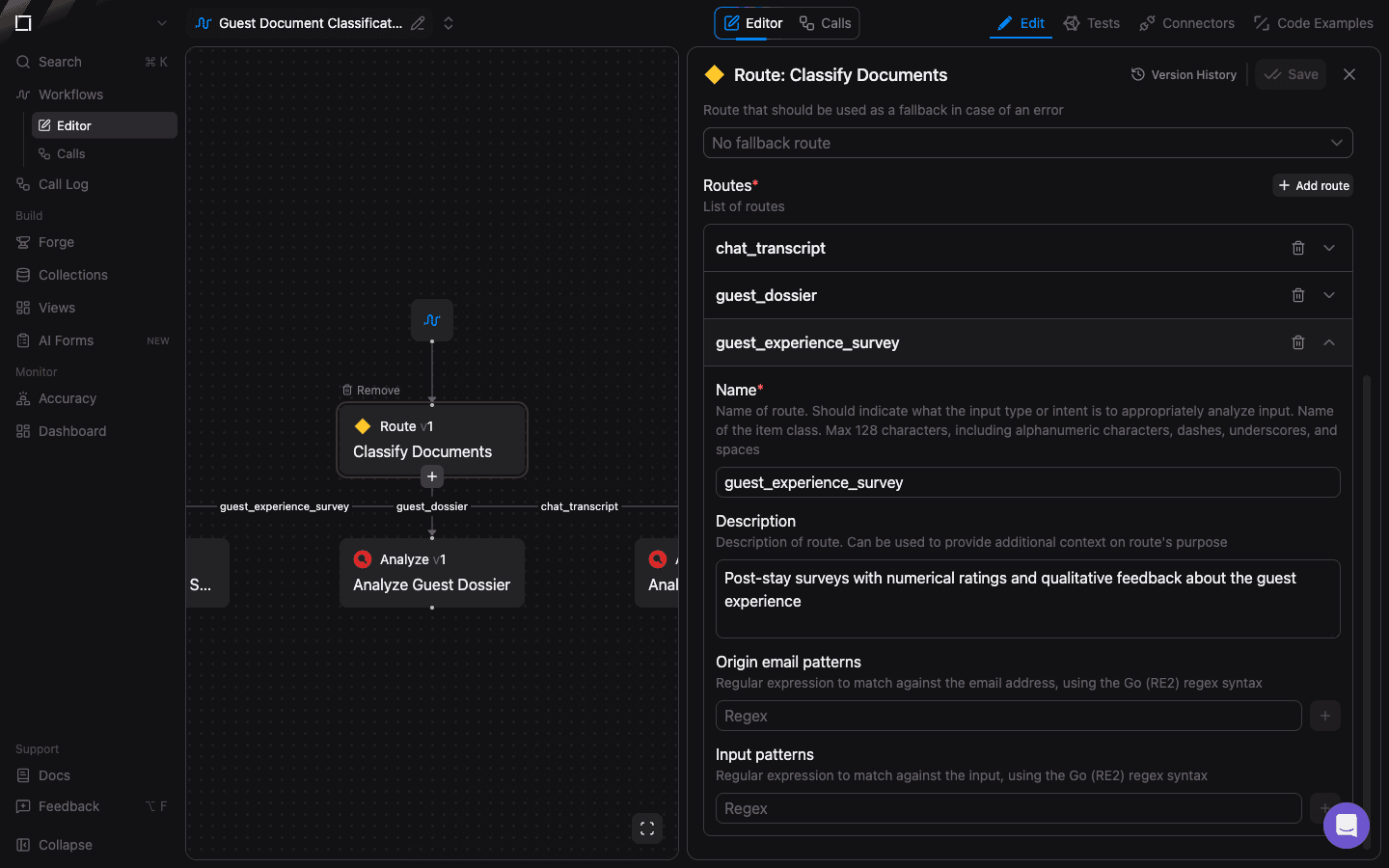
DAG canvas
The canvas shows every node in the workflow as a connected DAG.
- Node — each box is one function call-site. Click a node to select it and load its configuration on the right.
- Add child — hover a node and click the + button that appears underneath to append a downstream node. Only Route and Split nodes support multiple labelled outlets.
- Remove — hover a node and click Remove in its top-left corner to delete it from the workflow.
- Fullscreen — the icon in the bottom-right corner expands the canvas to the full window.
Configuration panel
The right panel has two tabs:
- Edit — settings for the currently-selected node. The fields change based on the function type (Transform, Analyze, Route, Split, Join, Enrich, Payload Shaping, Subscription). For Transform nodes you edit the function name, the JSON output schema, and model settings.
- Tests — upload up to 5 files and run them through the workflow. Results appear as cards with the output for each function in the DAG.
Edit tab
- Select Function — dropdown to attach an existing function to the selected node, or create a new one inline.
- Function Name — human-readable name. The API-visible identifier is shown below with a copy button.
- Output schema — JSON Schema describing the structured output. The Infer Schema From File button auto-generates a schema from an example document.
- Version History — opens the list of previous versions for the attached function so you can roll back or diff.
- Save — persists your changes as a new version of the workflow. Unsaved changes are indicated on the button.
- Close (✕) — collapses the panel to give the canvas more room.
New workflow
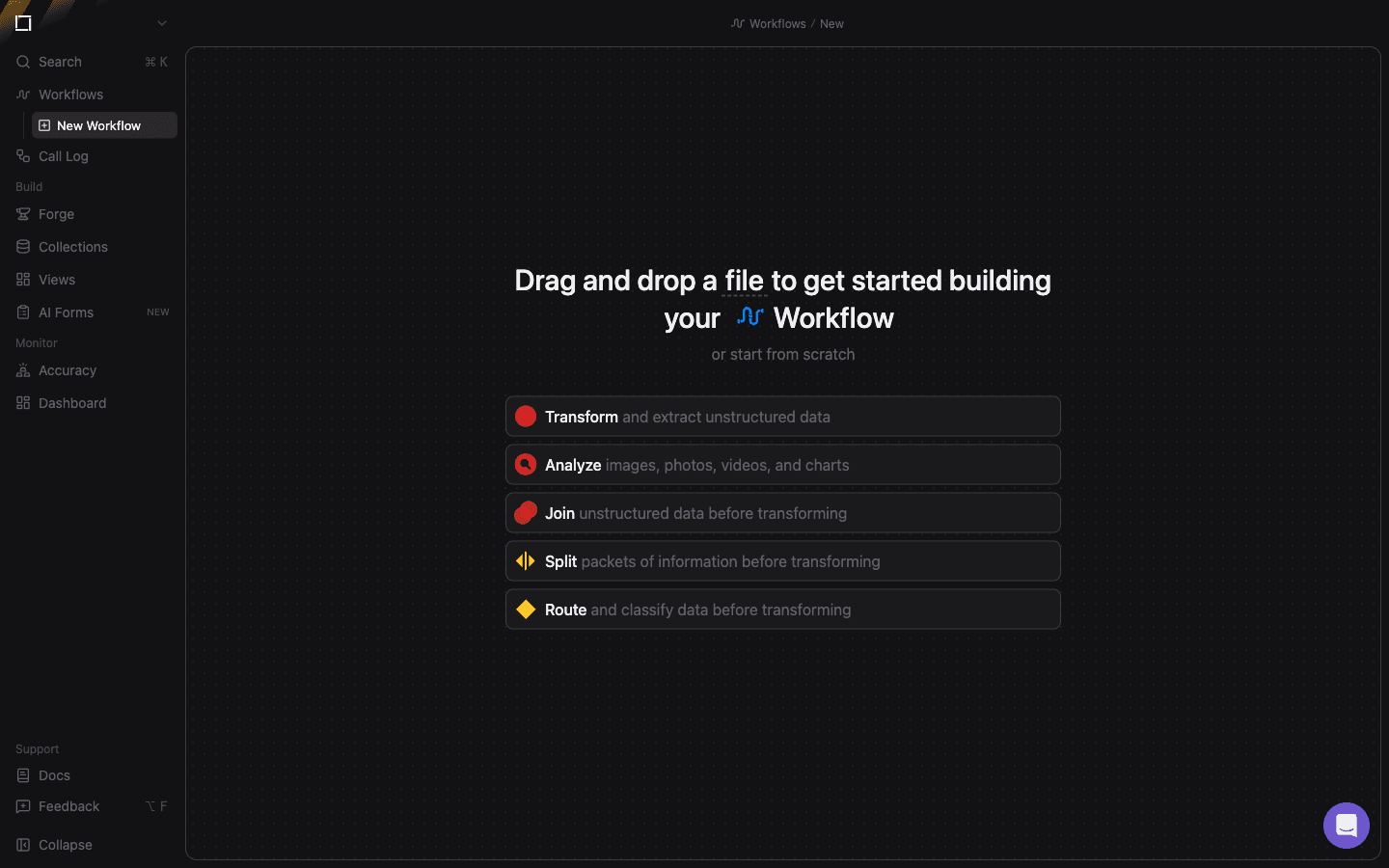
When you open the editor with no workflow selected, you're prompted to bootstrap one:
- Drop a file — drag any supported input (PDF, image, spreadsheet, audio, video) into the canvas and bem auto-generates a Transform function with an inferred output schema.
- Start from scratch — pick a starting function type (Transform, Analyze, Join, Split, Route) and the editor creates an empty node for you to configure.
The fastest way to create a workflow from a sample document is Forge — it uses natural language plus your file to scaffold a multi-node workflow end-to-end.