Workflows
Browse and manage every workflow in your environment
Hand off to an LLM
The Workflows page is the default landing page for the dashboard. It lists every workflow in the current environment with quick actions for editing, replaying, and promoting them.
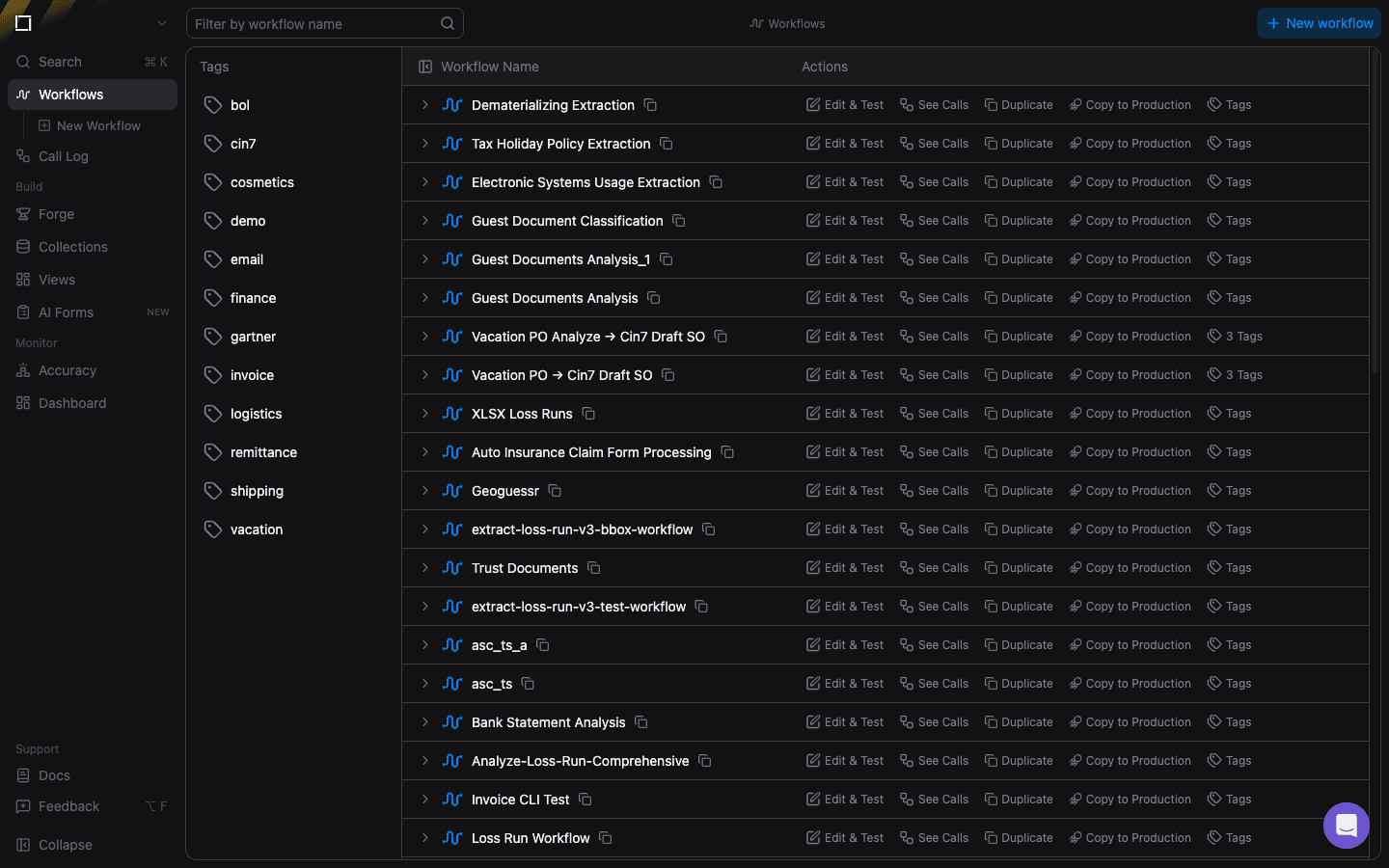
Filter and search
- Filter by workflow name — use the search bar above the table to filter the list by
displayName. Matching is substring-based and case-insensitive. - Environment switcher — the button in the top-left corner of the sidebar switches between environments (for example Sandbox and Production). Each environment has its own independent set of workflows.
Row actions
Every row in the table corresponds to one workflow. Hovering a row exposes the following actions:
- Edit & Test — opens the workflow in the Editor where you can modify its DAG, adjust function settings, and run test calls.
- See Calls — opens the Calls view filtered to that workflow so you can inspect its execution history.
- Duplicate — creates a copy of the workflow within the current environment. Useful for experimenting with configuration changes without touching the original.
- Copy to Production — clones the workflow (and the functions it depends on) into your Production environment. Only available when you are viewing a non-production environment.
- Tags — manage the free-form tag list on the workflow. Tags are returned by the API and help you organize workflows by domain, team, or lifecycle stage.
Clicking the copy icon next to a workflow's name copies its API name to your clipboard so you can paste it into an API call.
Creating a workflow
- New workflow — opens the New Workflow page where you can either drop a file for bem to auto-generate a workflow, or pick a starting function type.