Comparisons
Compare function versions against labeled data
Use Comparisons to see how changes to a function affect output quality and processing time. Each version runs against the same Dataset, using its labels as the expected results.
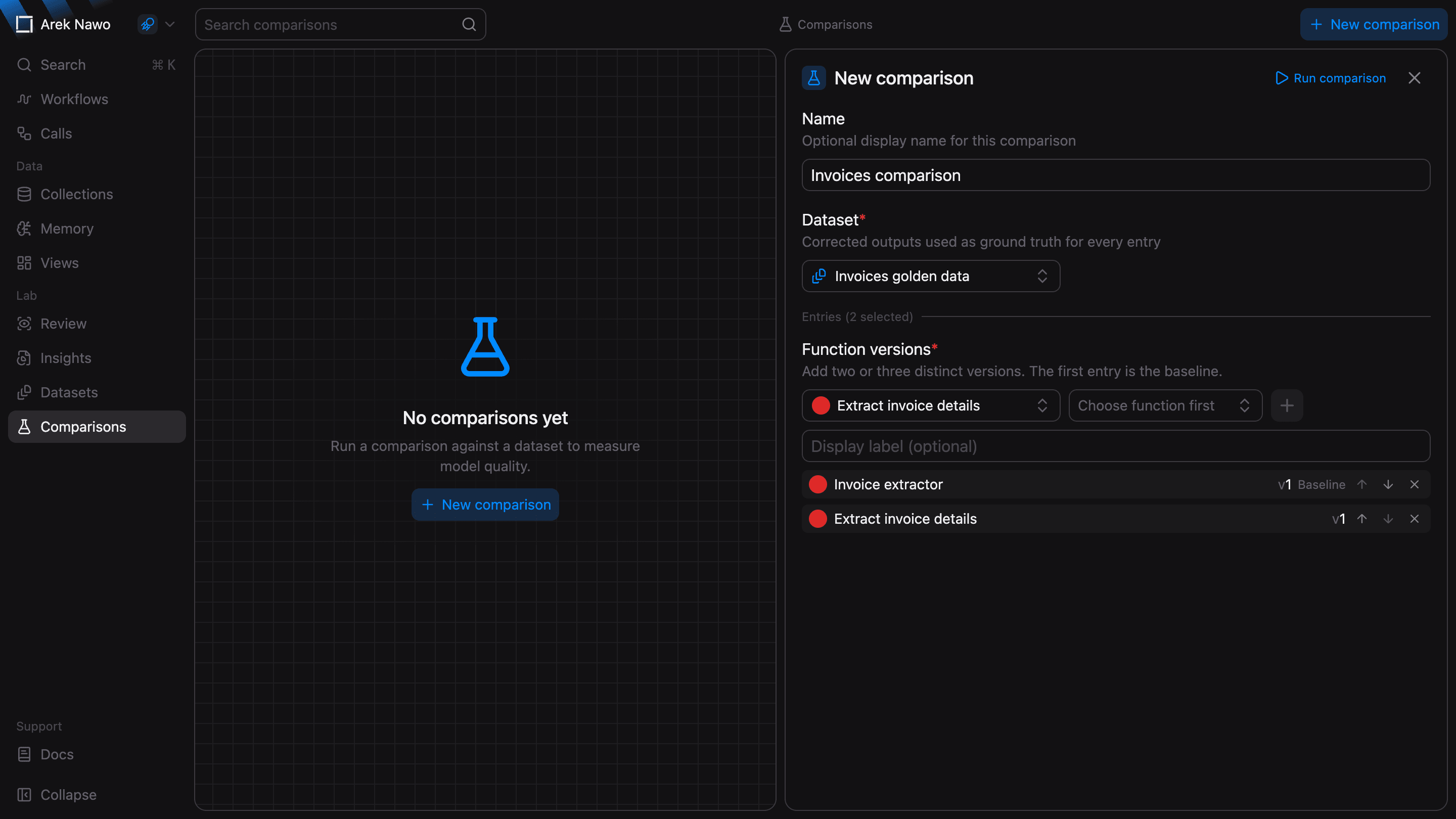
Start a comparison
Select New comparison, choose a dataset, and add the function versions you want to compare. Place the version you want to measure changes against first. This is the baseline.
You can compare versions from different functions. Choose versions with output schemas that fit the dataset's expected fields and structure, then select Run comparison.
Inspect results
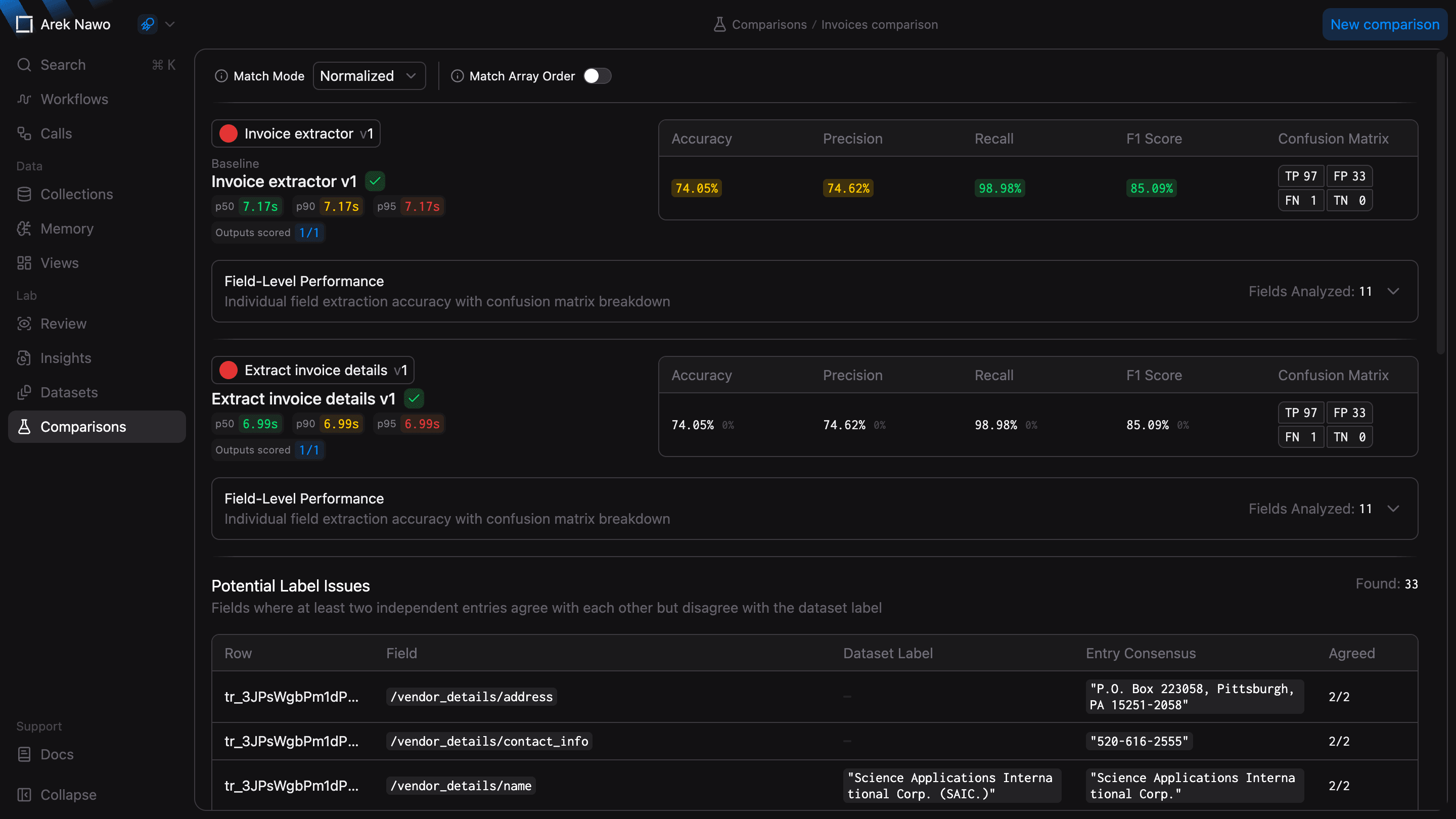
Compare overall quality and latency, then open Field-Level Performance to see which fields improved or got worse. Changes are shown relative to the baseline. Check Outputs scored to see how much of the dataset contributed to each version's scores.
Choose how outputs match
Use Strict when values must match exactly. Normalized accepts equivalent number and date formats and ignores differences in text case and spacing. Fuzzy also accepts small differences in free text, such as minor spelling variations. Numbers, dates, and enum values still use Normalized matching.
Turn on Match Array Order when array items must appear in the same order. Leave it off when a different order is still correct. Changing these settings updates the scores without running the functions again.
Check potential label issues
Potential Label Issues highlights fields where at least two versions agree with each other but differ from the dataset label. Use these suggestions to find labels that need review. Check the source data before you change a label, since the versions may share the same error.