Integrations
Connect external file sources and use them in workflows
Use Integrations in Settings to set up integrations for workflow's inbound connectors (that trigger the workflow when e.g. a file is added to cloud storage), subscriptions and Send functions (e.g. to send successful outputs to cloud storage)
Set up an Integration
Select Set Up for the service you want to connect, then complete its connection dialog. You can return to Configure to update the connection settings later.
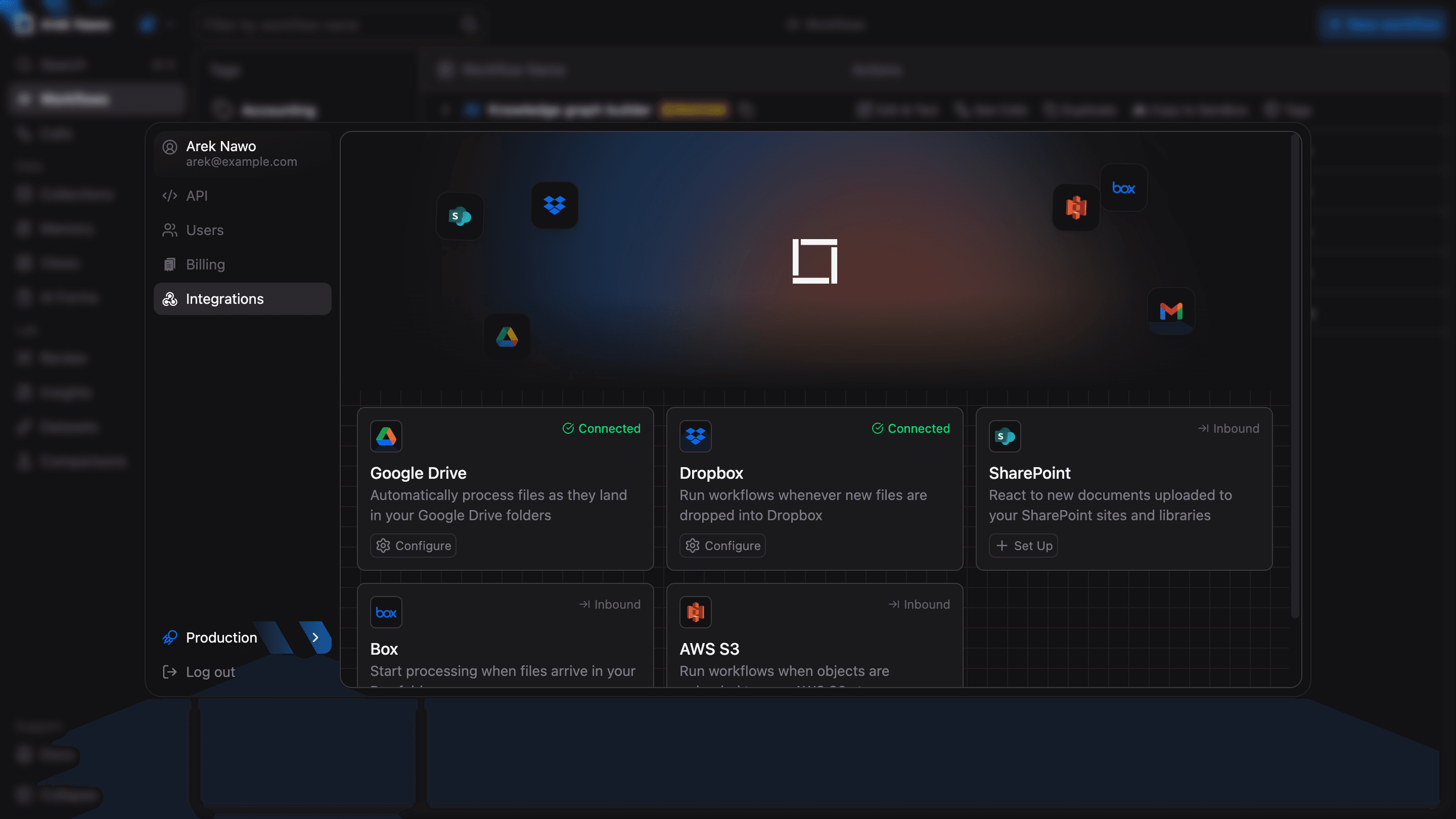
Use Integrations for Inbound Connectors
In the Workflow Editor, select the workflow entry in the graph and add an inbound connector under Connectors. Choose the connected service, set its source, and save the workflow.
- For Google Drive, SharePoint, or Box, select a source folder via dedicated file picker.
- For Dropbox, enter a Folder Path.
- For AWS S3, enter a Bucket Name and optionally a Subfolder to limit which files the workflow receives.
You can also ask Forge to configure the connector. If it asks you to set up an integration, complete the process and any folder selection it requests, then review the workflow changes.