Forge
Build and edit workflows through a conversation
Forge helps you build a workflow by describing what you need. It can infer output schemas from sample files, make the requested edits and run tests with provided files. Open a workflow's Editor and select Forge to access it.
Start a conversation
Describe the input you have and the output you need. Attach sample files to give Forge something to work with. For an existing workflow, explain what should change. Type @ to refer to a specific attached file or function.
For example:
Classify these documents as invoices or receipts, then extract the vendor, date, and total with a separate Extract function for each class.
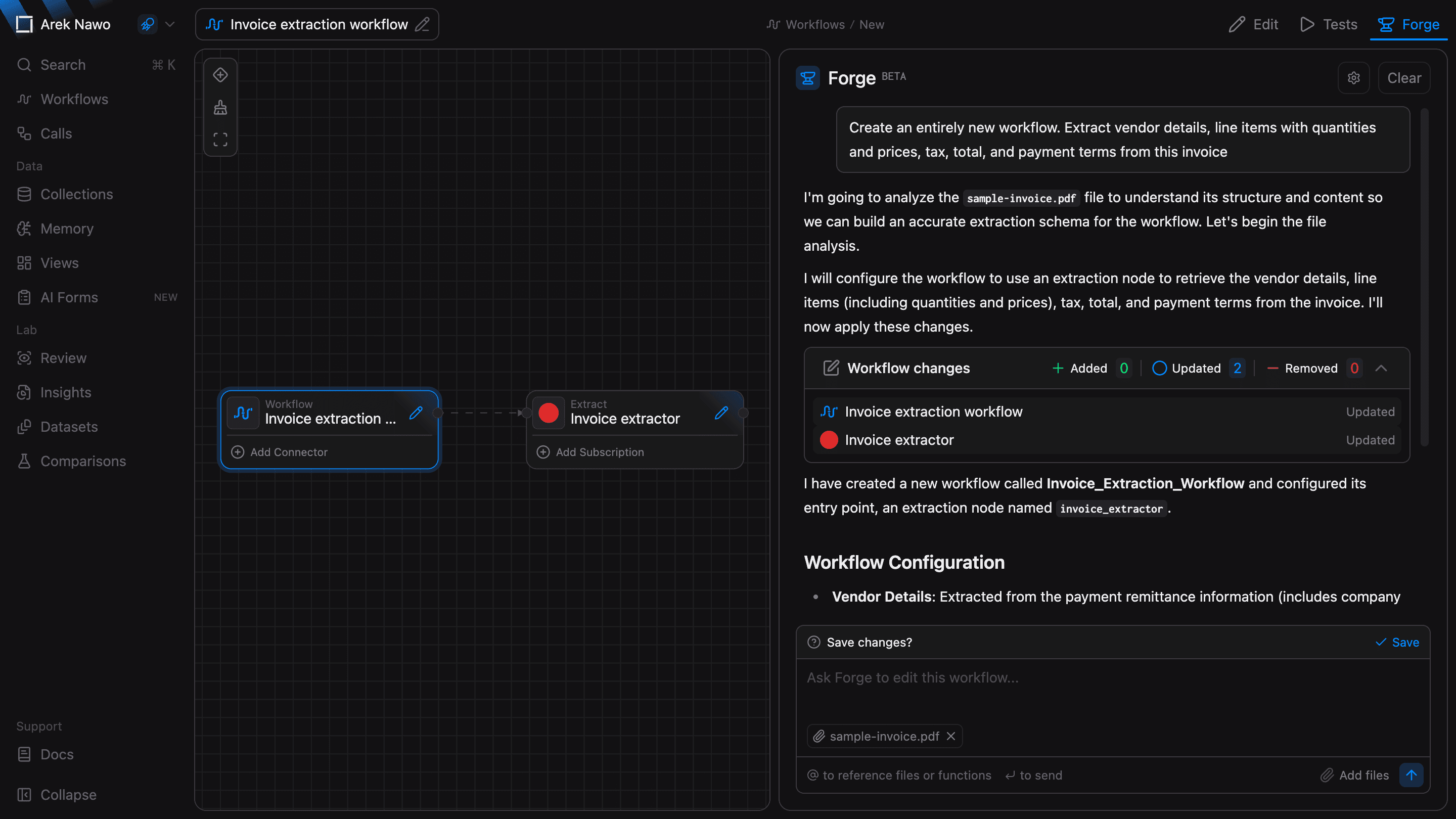
Review and save changes
Forge updates the workflow in the editor as it responds. Expand Workflow changes to see what it added, changed, or removed. You can always open individual function configurations in Edit panel to check and edit manually afterwards.
Changes are not saved automatically by default, but you can always enable Autosave changes in Forge settings for quicker iteration.
Test the workflow
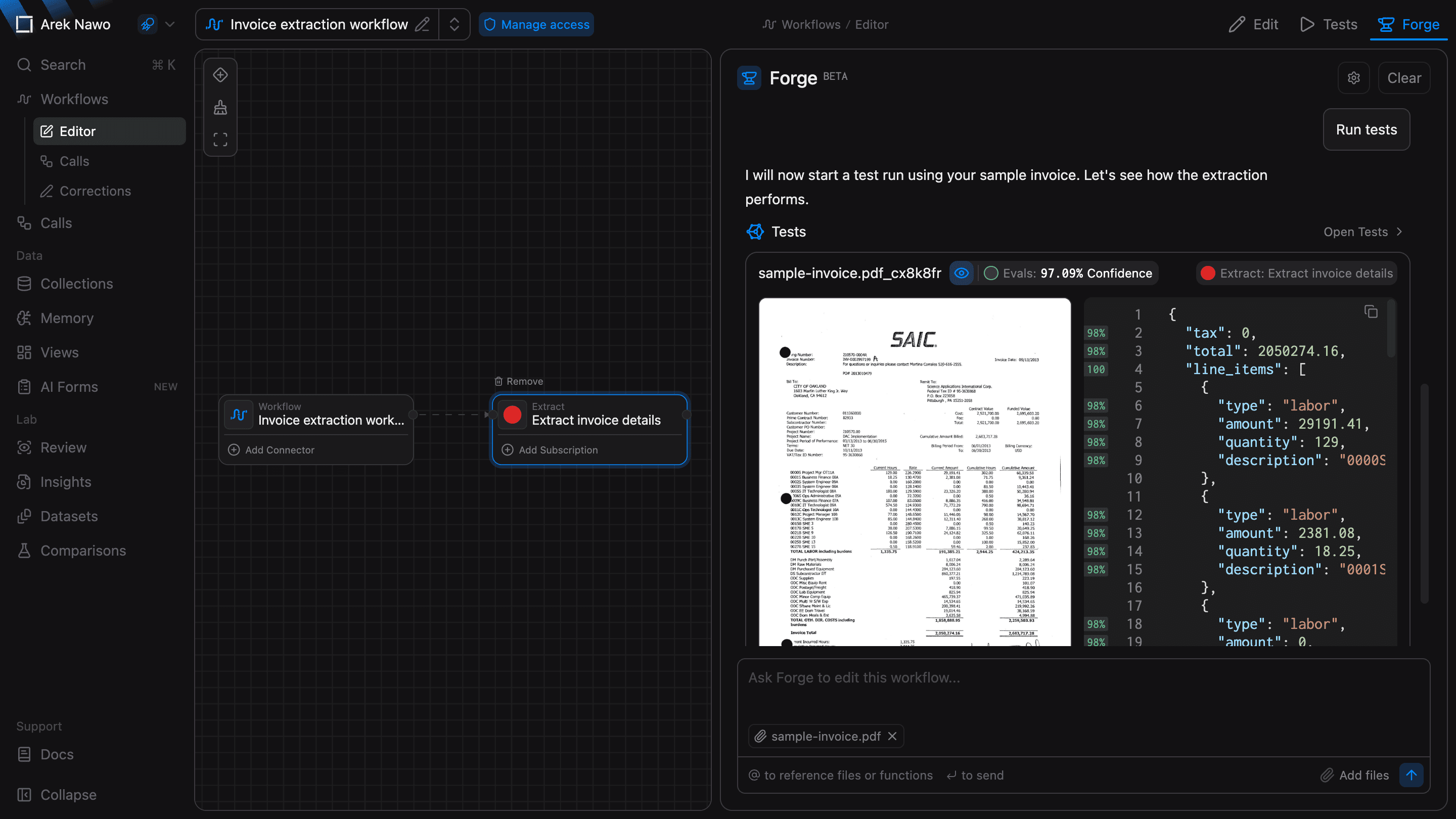
Ask Forge to test with your attached files, or select Run tests when prompted.
The results appear right in the conversation. Compare the output with the input preview, then tell Forge what to adjust. Select Open Tests to inspect results in the full Tests panel.
Once you have saved the workflow, you can also ask Forge for code examples to call it from your application or send files by email.