Workflows
Find and manage workflows in the active environment
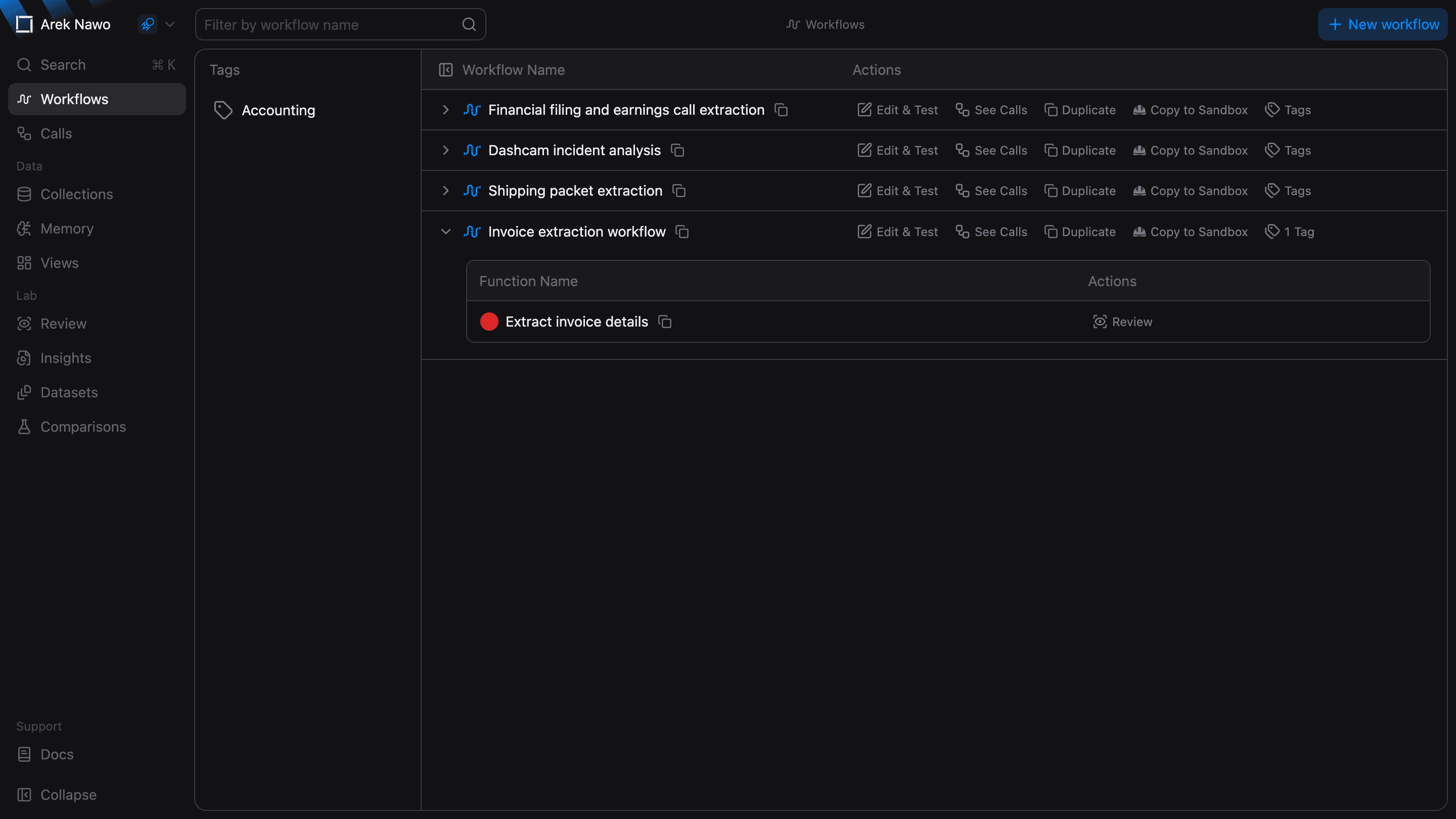
The Workflows page is where you create, edit, test and monitor workflows - the primary location of most of your work in the dashboard.
Find a workflow
Search by name or select a tag to narrow the list. You can use both filters together. If a workflow is missing, check whether Sandbox or Production is selected in the account menu.
Select a workflow to open it in the editor or see its calls.
A Restricted badge means that access is limited to specific members. See Access Control for details.
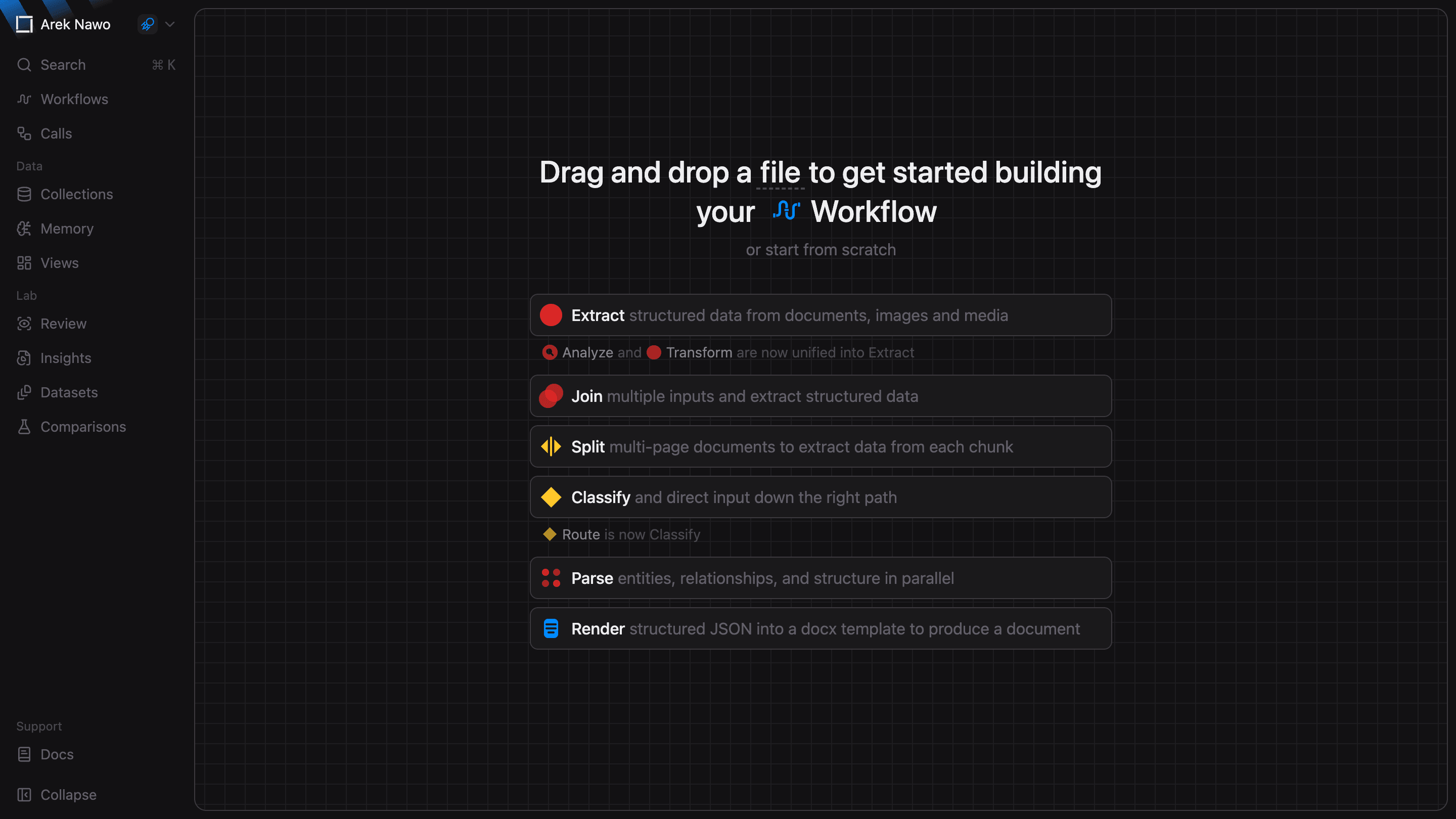
Create a workflow
Select New workflow and drop a sample file to start with Forge. You can also choose a starting function type. See New workflow for help choosing how to start.
Copy a workflow
To use an existing workflow as a starting point, open its row menu and select Duplicate. This creates a copy in the active environment.
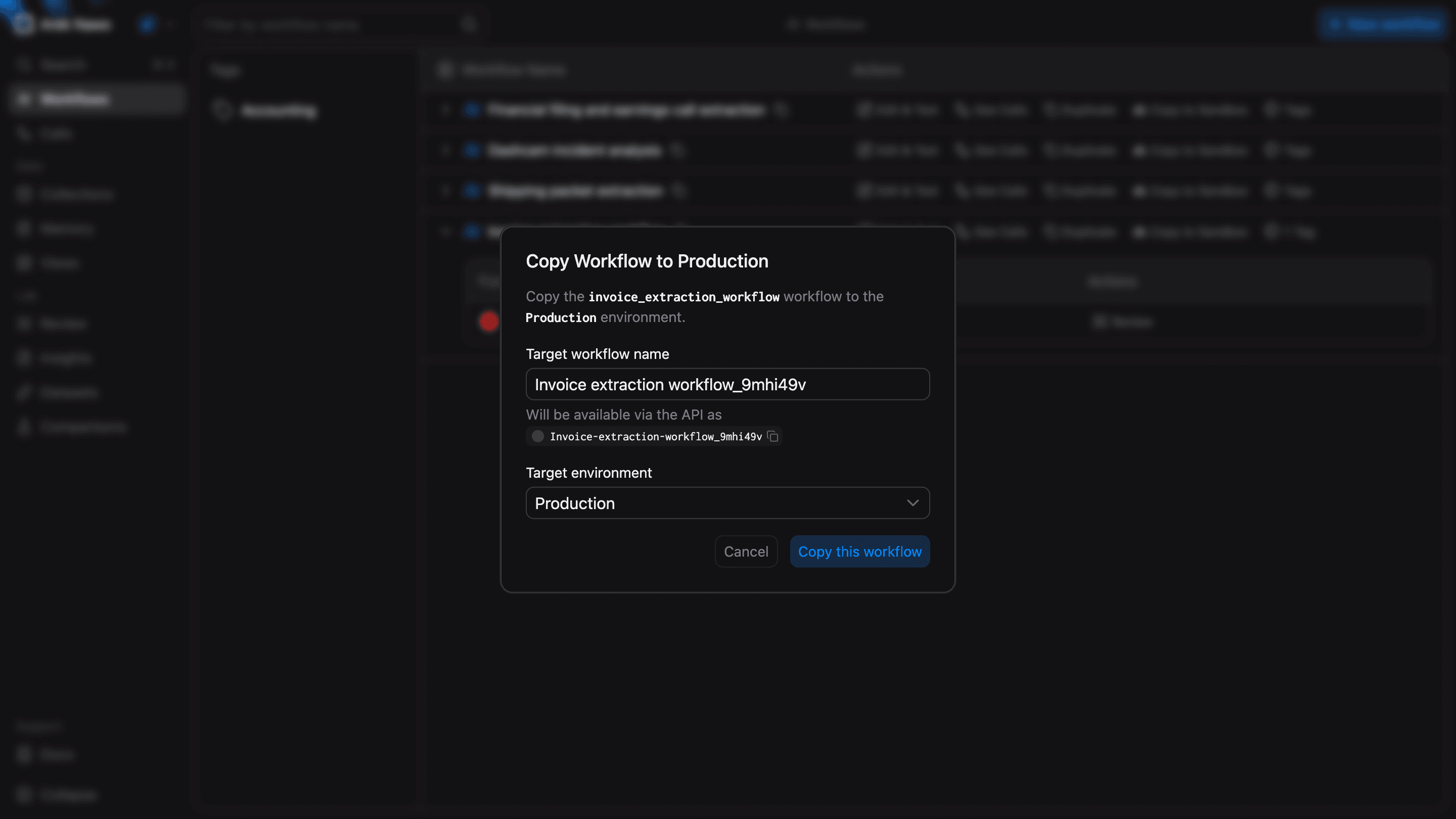
To copy a tested workflow from Sandbox to Production, select Copy to Production. You can also copy in the other direction. Check the target name and environment in the dialog before you confirm.
Use a workflow in code
The API name identifies the workflow in API requests. Use the copy button beside the workflow name to copy it. If you rename a workflow, check the API name shown in the dialog and update any requests that use the old name.