Workflow Editor
Build, configure, and test a workflow
Use the workflow editor to build, configure, and test your workflow with sample files.
New workflow
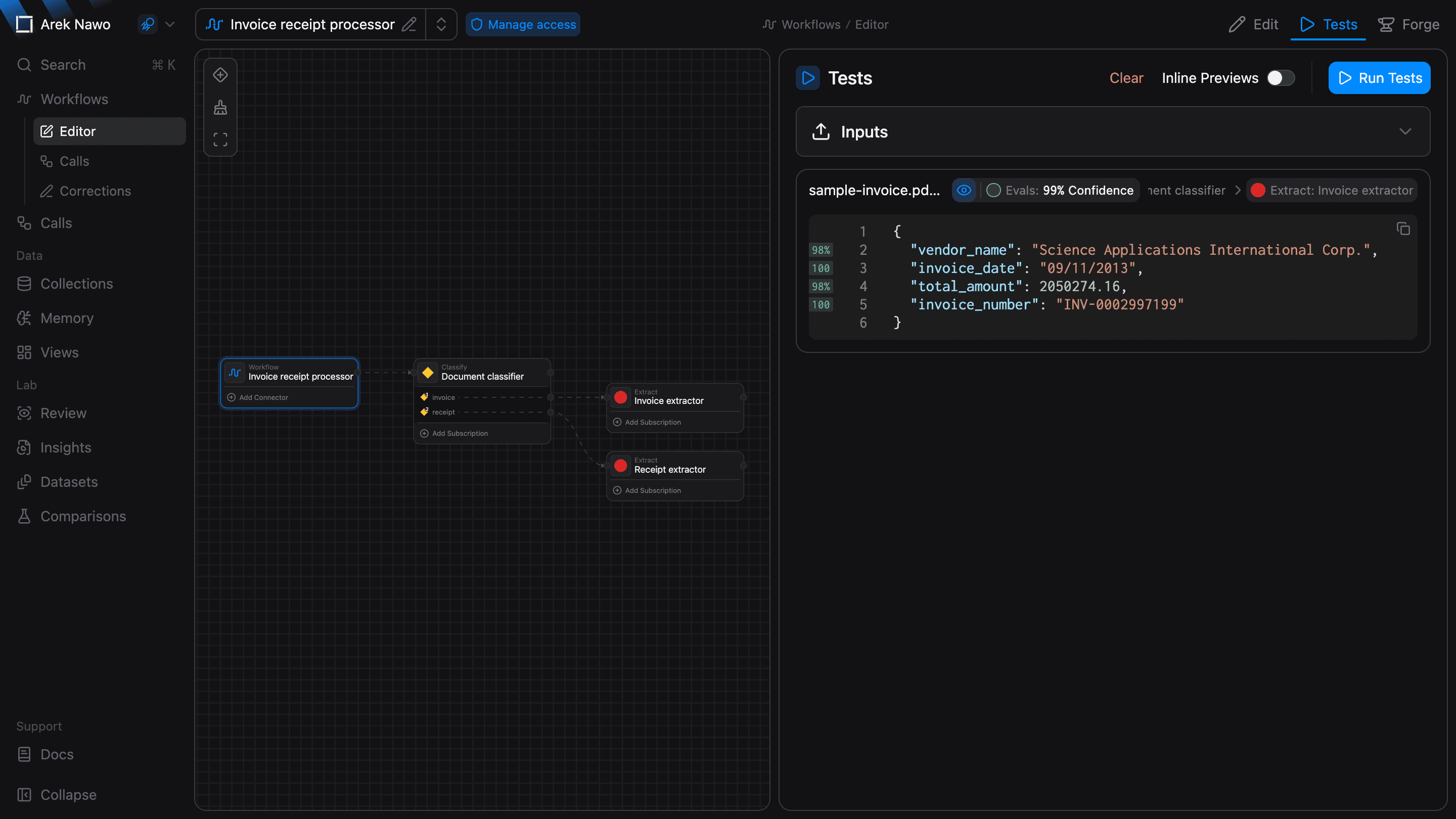
Select New workflow from the Workflows page. If you have a sample file, drop it into the upload area to start building with Forge. Alternatively, you can start from scratch by choosing the first function.
Workflow graph
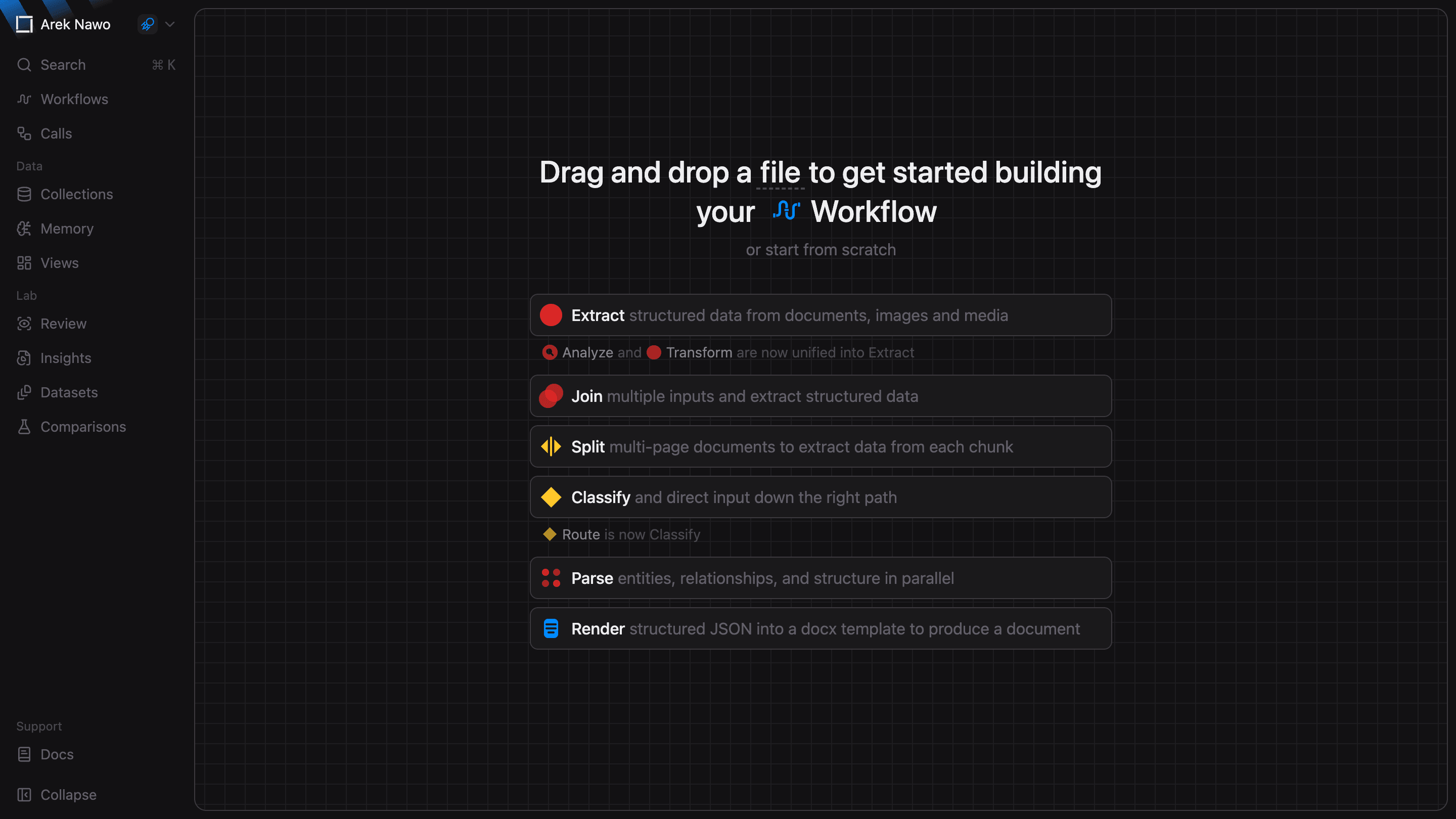
Each node in the graph is a processing step. Select a node to edit its settings, or use + to add the next step. The available connections and function types depend on the node. Select the workflow entry to configure how data enters the workflow through inbound connectors.
You can connect many nodes to compose your workflow. For example, a Classify function can separate invoices from receipts, then send each type to its own Extract function.
See Function types for help choosing the right function types for your use case.
Edit
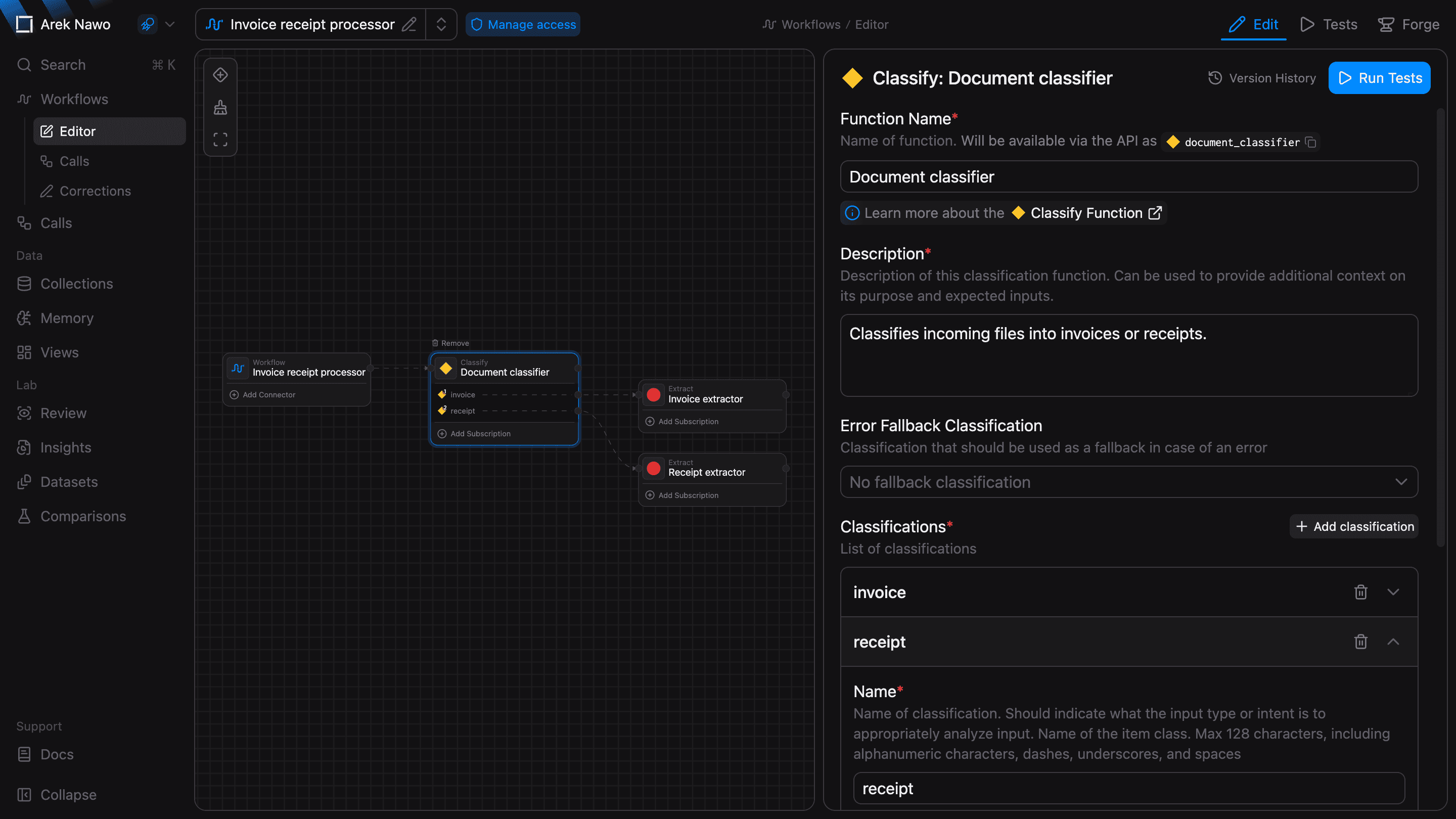
The Edit view shows the individual settings for the selected function nodes. For functions that return structured data (e.g. Extract, Join), the output schema defines the fields you want. You can edit it visually or as code where supported. Infer Schema From File gives you a starting schema from a sample, which you can then adjust to your needs.
Resolve any configuration errors before you save. Use Revert changes to discard any pending edits.
You can also use Version History to inspect earlier configurations of individual functions.
Tests
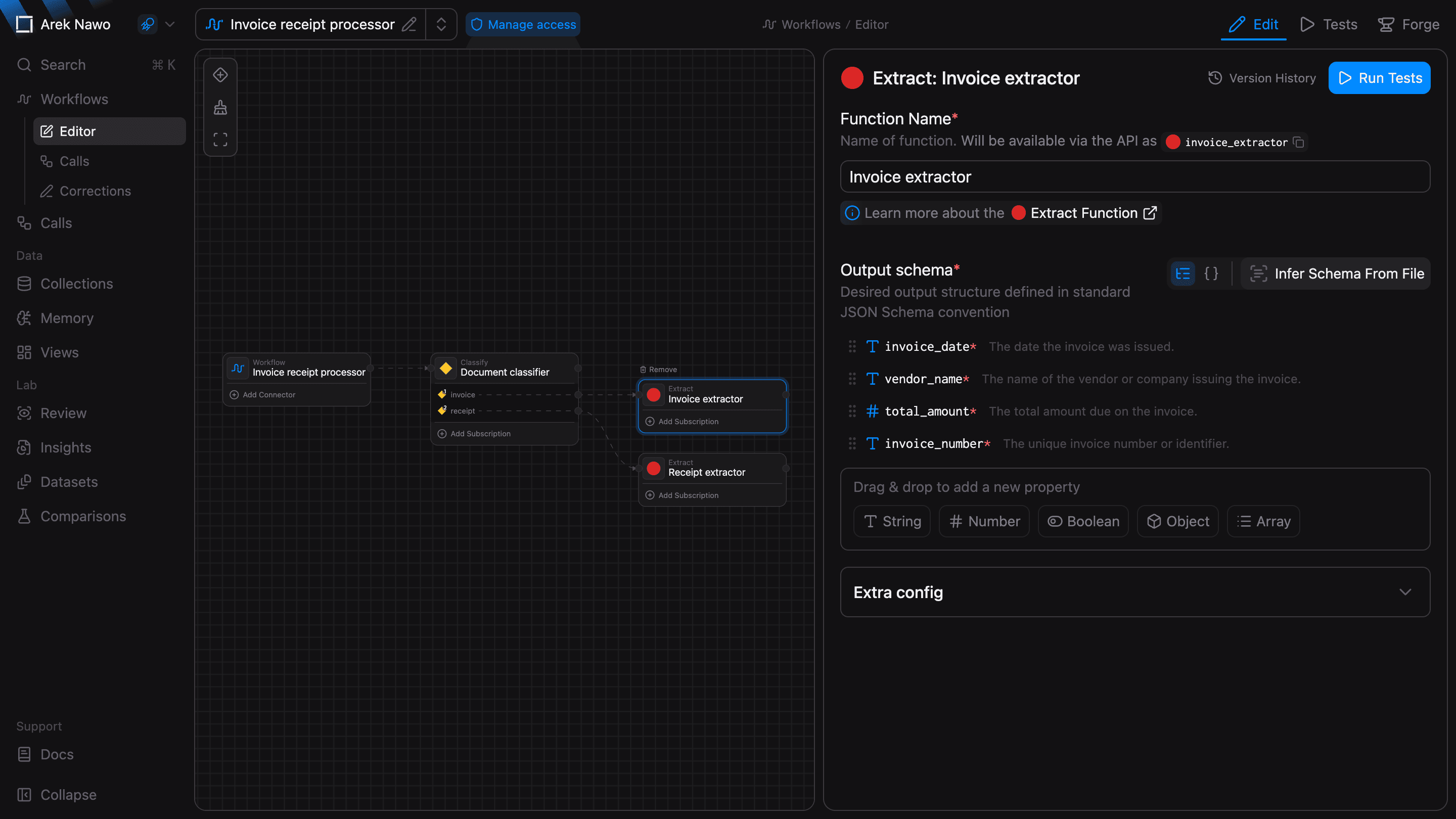
Tests panel is where you can easily test your workflow by first adding sample files under Inputs and then selecting Run Tests.
For Join functions, input files are sent as a single batch and can be tagged for better distinction and organization.
Compare the output with the input preview to check that the workflow captures the data you need. If the workflow includes evaluation steps, check their status too.