Users & Access Control
Account roles and workflow visibility for members
Use account roles to set what each member can do in bem. Restrict a workflow when only selected members should be able to access it.
Account roles
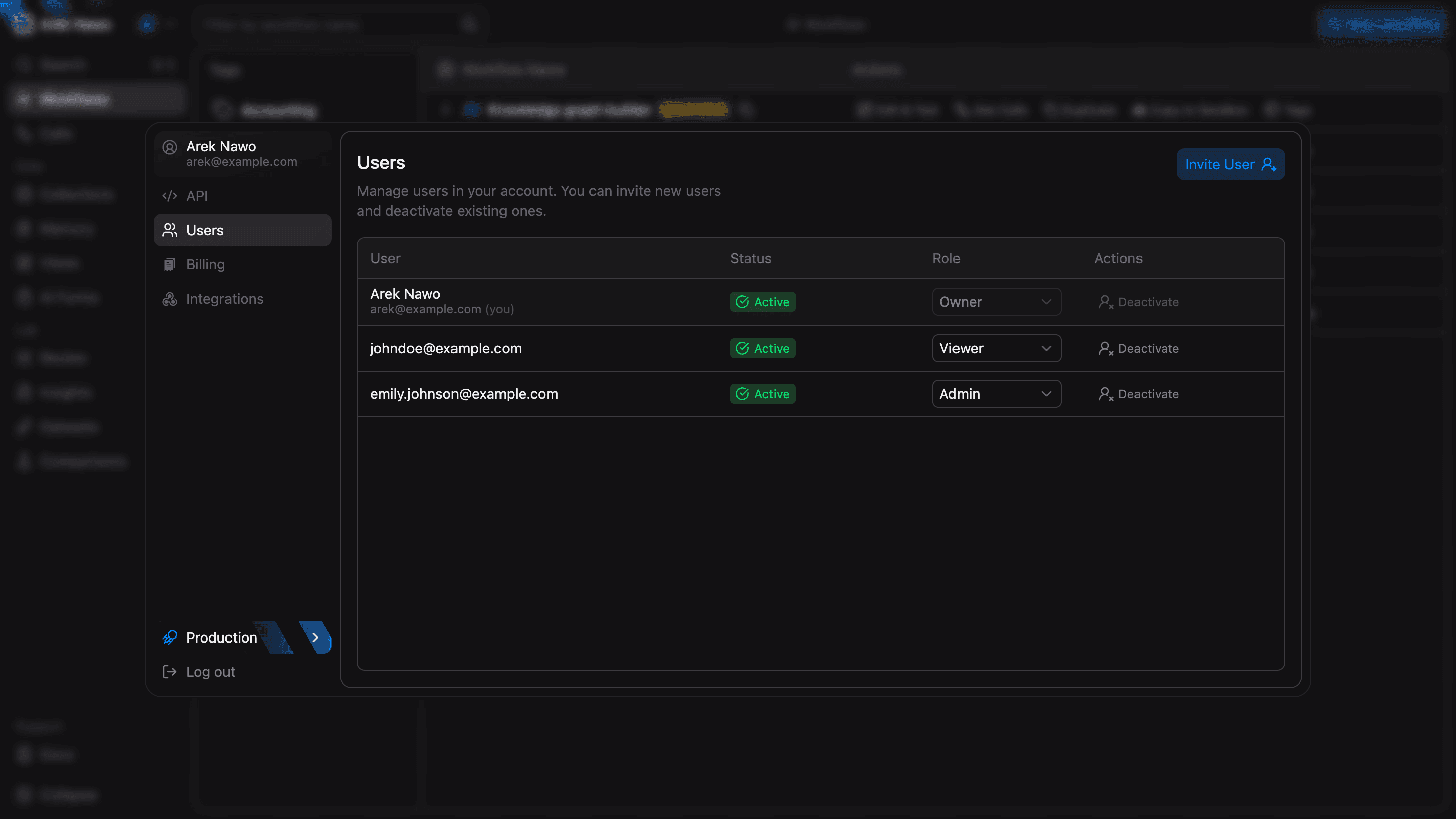
Open Settings, then Users to manage account members. Admins and Owners can invite members, change their roles, and deactivate their access.
Each member has one account role:
| Role | Main permissions |
|---|---|
| Owner | Full access, including billing. Each account has one Owner. |
| Admin | Manage members, API keys, webhooks, and all workflows. |
| Operator | Editor access, plus call retries and output corrections. |
| Editor | Create, edit, and delete workflows and functions. Run tests in the editor. |
| Viewer | Read workflows and their results. |
Restrict a workflow
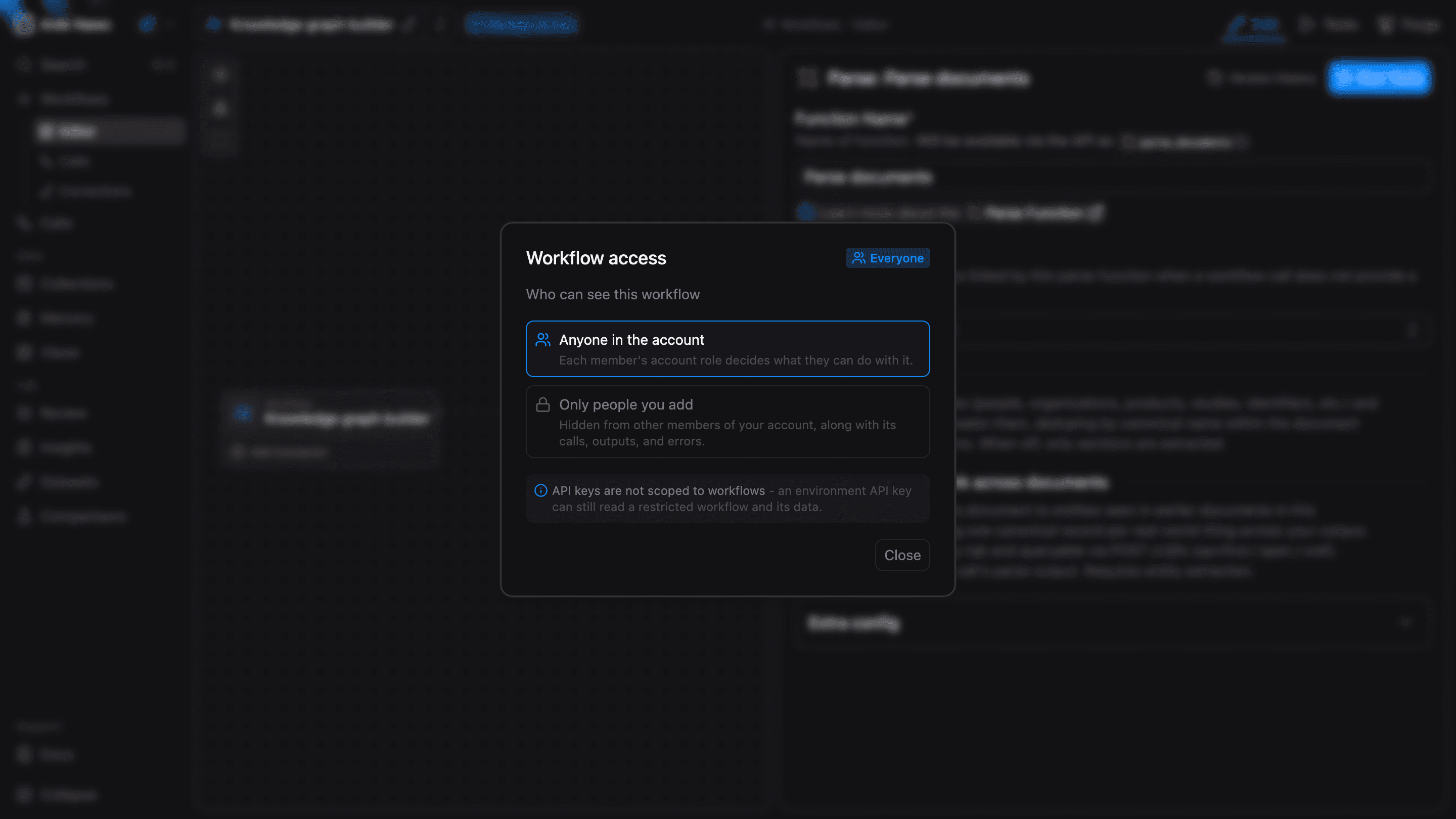
Workflows start open to everyone in the account. Each member's account role determines what they can do with an open workflow.
To restrict one, an Admin or Owner can open Manage access beside its name and select Only people you add. The workflow and its calls, outputs, and errors will be hidden from other members.
Add the members who need access, check their workflow roles, then confirm. Admins and Owners always retain full access, so you do not need to add them.
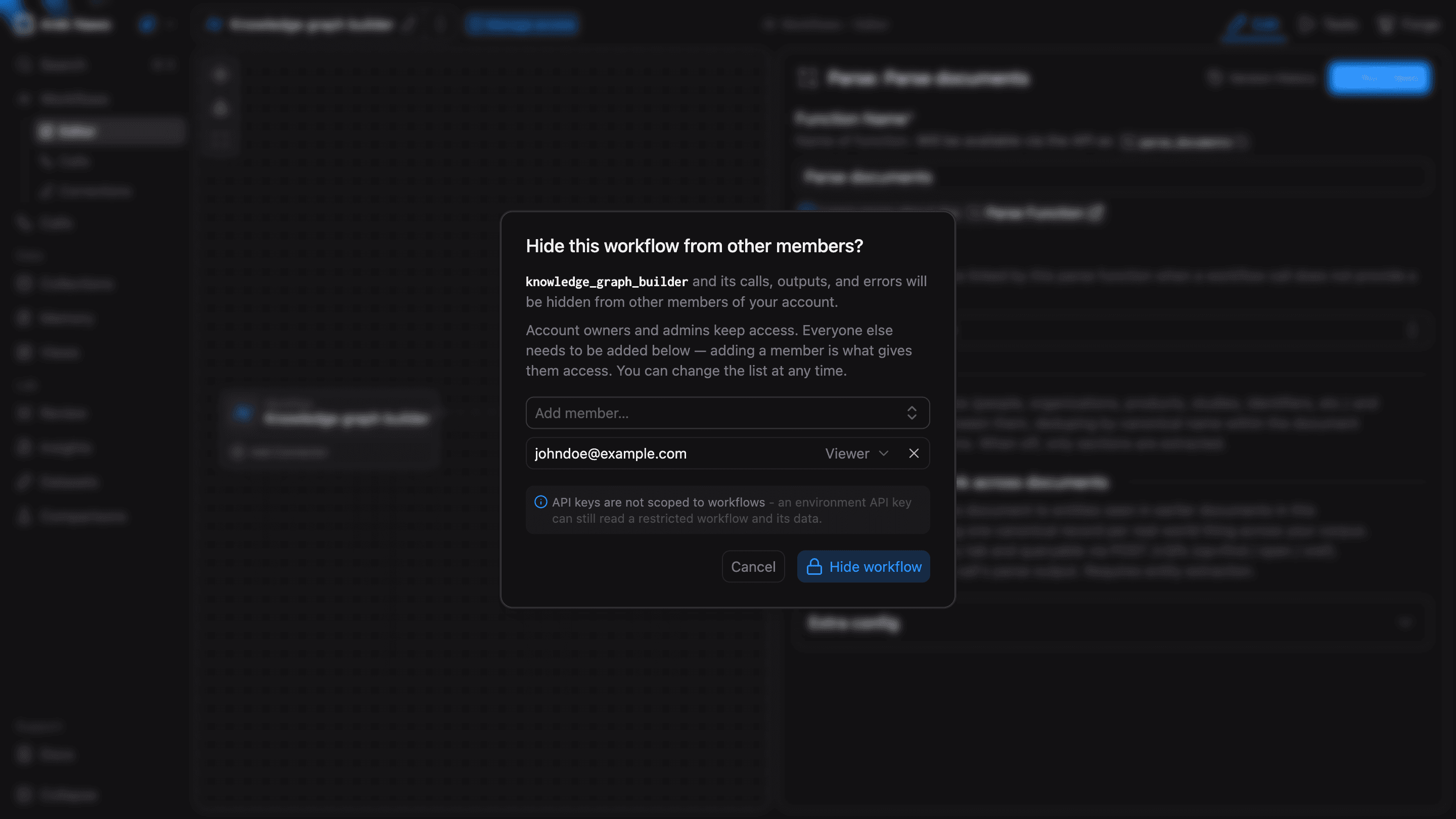
API keys are not scoped to workflows. An environment API key can still read a restricted workflow and its data. These restrictions control member access only.
Access settings apply separately in Sandbox and Production. Copying a restricted workflow keeps the copy restricted and makes you its Manager. Add the members who need access to the copy.
To make a workflow open again, select Anyone in the account. This deletes its member list. If you restrict it again later, you must add members again.
Workflow roles
On a restricted workflow, a member's workflow role determines their access. For example, an account Viewer with a workflow Editor role can edit that workflow. An account Editor with a workflow Viewer role can only read it.
Each workflow role includes the permissions of the roles above it:
| Workflow role | Additional permissions |
|---|---|
| Viewer | Read the workflow, its versions, and its results. |
| Operator | Run the workflow and retry calls. |
| Editor | Edit the workflow and its functions, or delete it. |
| Manager | Manage member access and remove workflow restrictions. |
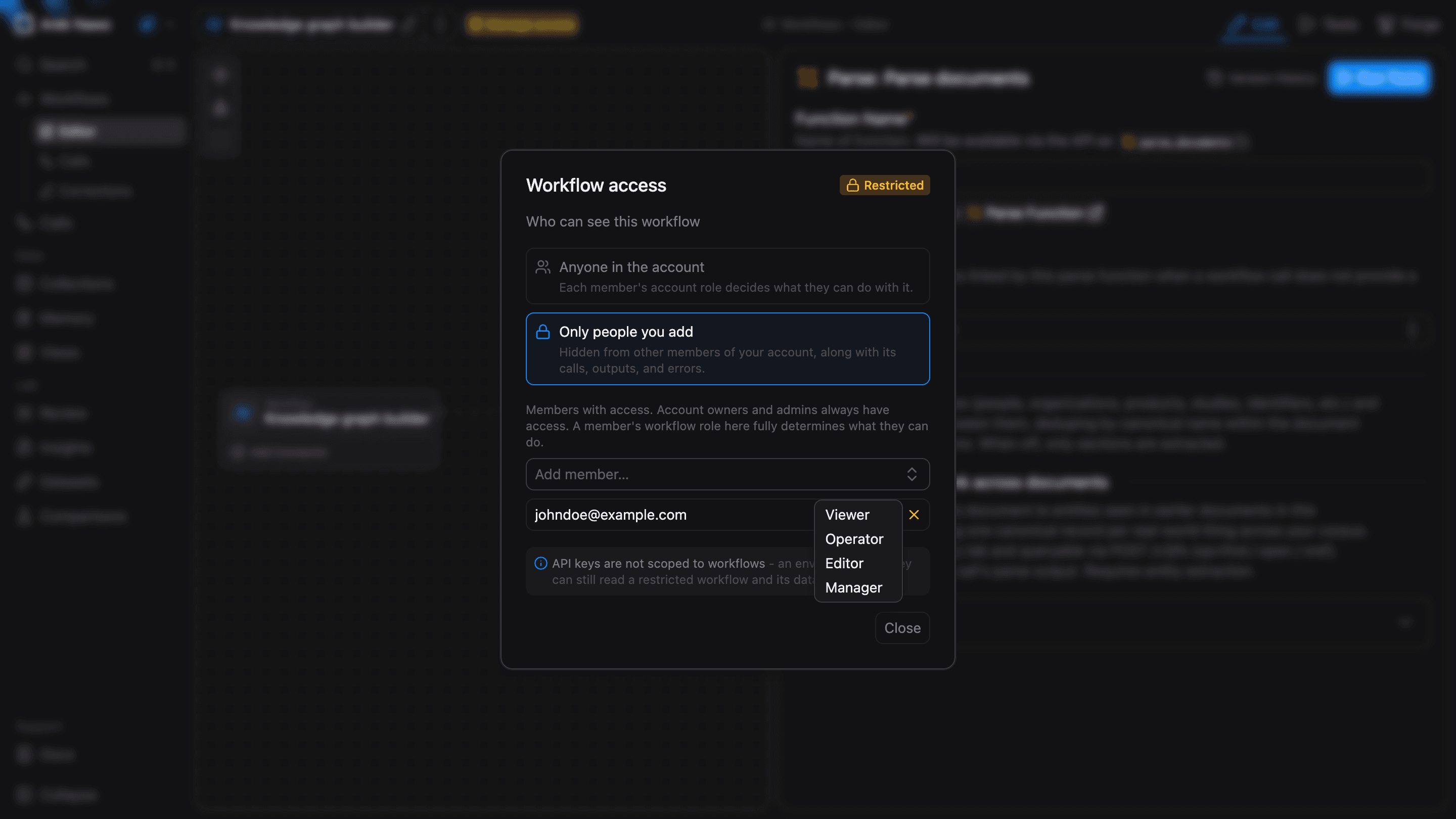
An account Operator can edit open workflows. A workflow Operator can run a restricted workflow but cannot change it. To give someone access to run a workflow without editing it, use an account Viewer role and a workflow Operator role. They can work from the workflow's Calls page.
New members start with a workflow role that preserves their existing permissions. For example, an account Operator starts as a workflow Editor. Adjust this role if they need different access.
To submit Corrections in the dashboard, a member needs an account role of Operator, Admin, or Owner. An account Viewer or Editor does not see submission controls, even with a higher workflow role. On a restricted workflow, members also need a workflow role of Operator or higher; Admins and Owners always retain access.